🧩 Project Management – Project Sub Component
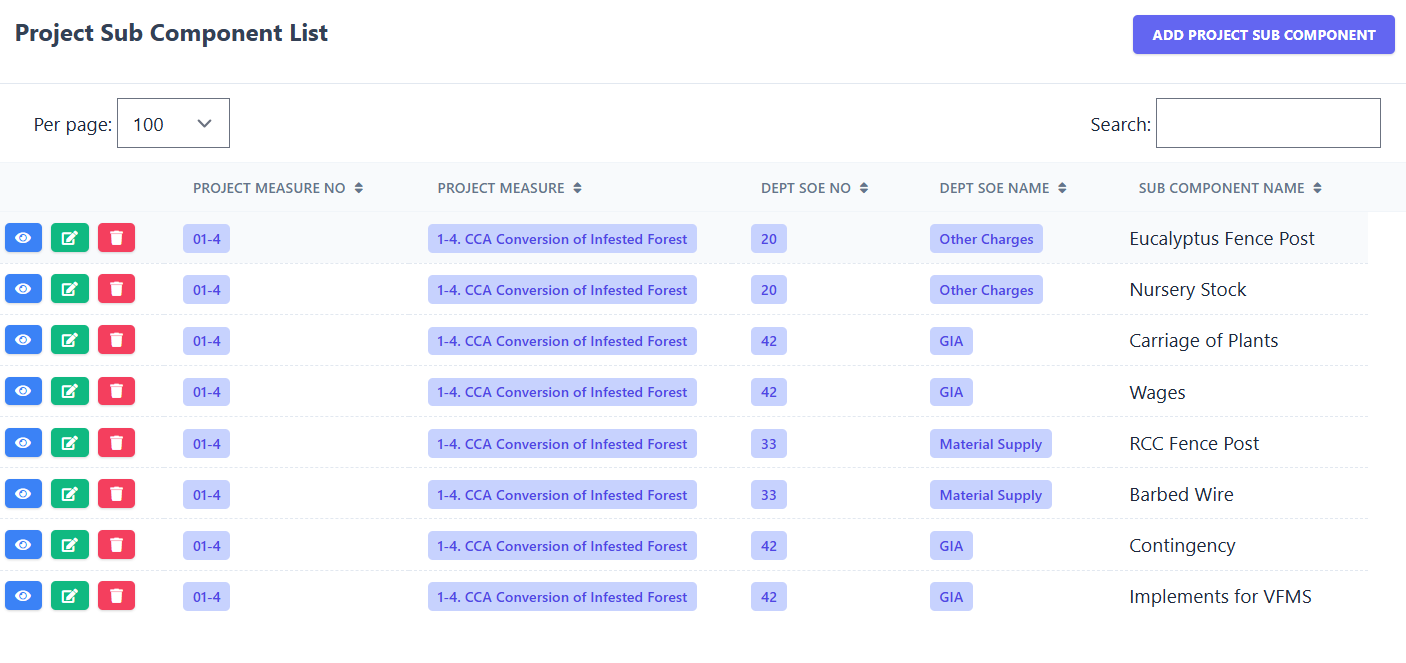
The Project Sub Component List sub-module allows you to view and manage all sub-components under a project. Each record displays Project Measure No, Project Measure, Dept SOE No, Dept SOE Name, and Sub Component Name.
📋 Existing Project Sub Component Records
| Project Measure No | Project Measure | Dept SOE No | Dept SOE Name | Sub Component Name | |
|---|---|---|---|---|---|
| 01-4 | 1-4. CCA Conversion of Infested Forest | 20 | Other Charges | Eucalyptus Fence Post | |
| 01-4 | 1-4. CCA Conversion of Infested Forest | 20 | Other Charges | Nursery Stock | |
| 01-4 | 1-4. CCA Conversion of Infested Forest | 42 | GIA | Carriage of Plants | |
| 01-4 | 1-4. CCA Conversion of Infested Forest | 42 | GIA | Wages | |
| 01-4 | 1-4. CCA Conversion of Infested Forest | 33 | Material Supply | RCC Fence Post | |
| 01-4 | 1-4. CCA Conversion of Infested Forest | 33 | Material Supply | Barbed Wire | |
| 01-4 | 1-4. CCA Conversion of Infested Forest | 42 | GIA | Contingency |
🔍 Search: Filter Project Sub Components by any column. Only matching records are displayed.
🖼️ Module Screenshot
📌 Click image to view in full screen
➕ Add Project Sub Component
Clicking on Add Project Sub Component opens a form to enter:
- Project Measure No
- Project Measure
- Dept SOE No
- Dept SOE Name
- Sub Component Name
Click Save to add or Cancel to discard.
✏️ Edit Project Sub Component
Clicking Edit opens a form to update the sub component details:
- Project Measure No
- Project Measure
- Dept SOE No
- Dept SOE Name
- Sub Component Name
Click Save to update or Cancel to go back.
🗑️ Delete Project Sub Component
Clicking Delete removes the selected sub component from the system with a confirmation prompt.