🌲 Forest Management – Compartment
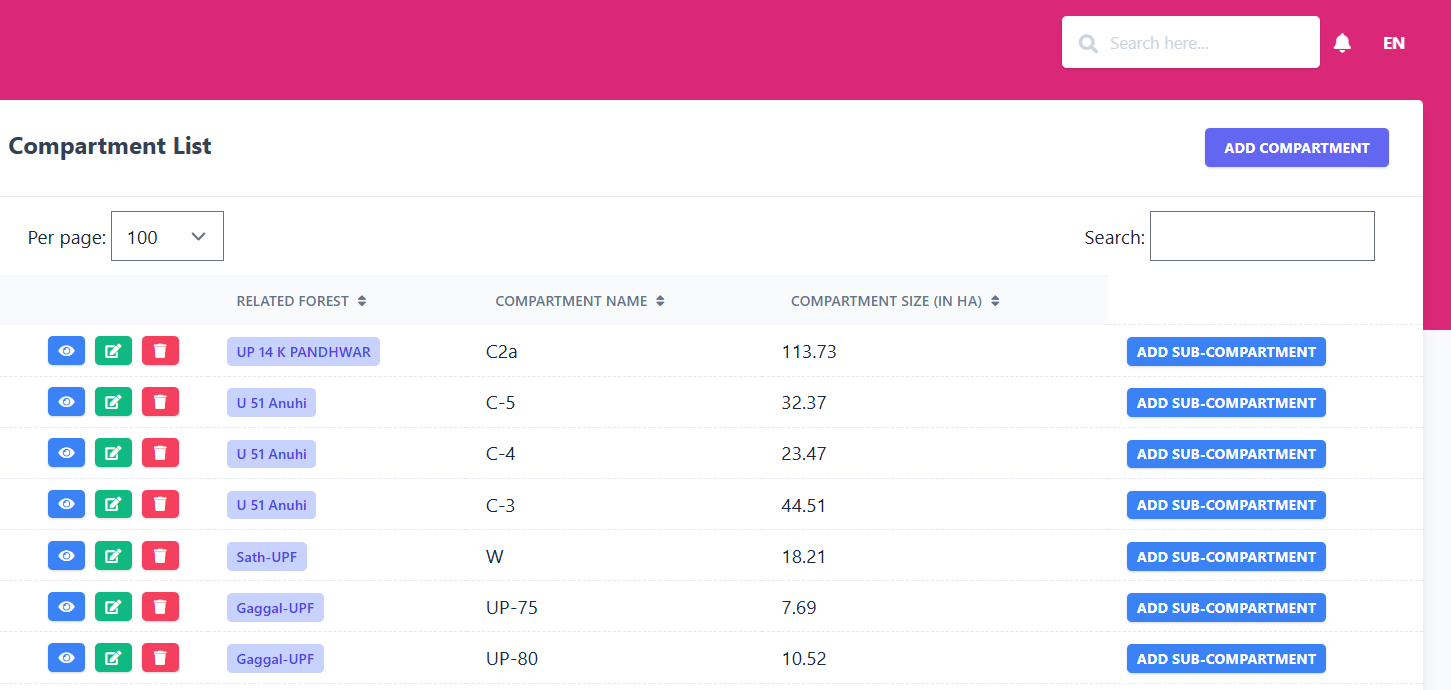
The Compartment sub-module allows you to organize forests into logical divisions. It lists all compartments, their sizes, and lets you create Sub-Compartments for further detailing.
📋 Existing Compartments
| Related Forest | Compartment Name | Compartment Size (HA) | Action |
|---|---|---|---|
| UP 14 K PANDHWAR | C2a | 113.73 | Add Sub-Compartment |
| U 51 Anuhi | C-5 | 32.37 | Add Sub-Compartment |
| U 51 Anuhi | C-4 | 23.47 | Add Sub-Compartment |
| U 51 Anuhi | C-3 | 44.51 | Add Sub-Compartment |
| Sath-UPF | W | 18.21 | Add Sub-Compartment |
| Gaggal-UPF | UP-75 | 7.69 | Add Sub-Compartment |
🖼️ Module Screenshot
📌 Click image to view in full screen
➕ Add Compartment
Clicking on Add Compartment opens a form to register a new compartment inside a forest:
- Related Forest – Select the forest where the compartment belongs.
- Compartment Name – Enter a name or code for the compartment.
- Compartment Size (in HA) – Enter its total area in hectares.
Use Save to confirm or Cancel to discard changes.
🌱 Create Sub-Compartment
Selecting Add Sub-Compartment for a compartment lets you further divide it:
- Related Compartment – Auto-filled with the chosen compartment (e.g., C2a).
- Sub-Compartment Name – Enter the sub-division name.
- Sub-Compartment Size (in HA) – Define its area in hectares.
Click Save to create or Cancel to go back.